
DataMagic Technical Column Vol.4
Data Conversion: PACK ⇔ ZONE
Introduction
The packed format is a space-efficient format that represents two decimal digits per byte when handling COBOL numeric items on mainframes and midrange computers.
However, since this format is not very familiar to open systems, packed data on mainframes and midrange computers must be converted into an appropriate format in order to be used on open systems.
However, by utilizing DataMagic, packed data on mainframes and midrange computers can be easily utilized.
This TIPS will introduce an example of converting fixed-length data from an IBM mainframe, including packed data, to fixed-length data in Shift_JIS. Note that in order to use this TIPS, DataMagic must be installed on your computer. For information on where to obtain DataMagic and how to install it, please refer to the separate article "Installing DataMagic."

How to operate
Step 1 - Prepare fixed-length data to be converted
First, prepare the mainframe data. Once the data is ready, save it in the following folder on the PC where DataMagic is installed.
C:\work\SAMPLE4\ (saved with the file name "in")
- In this TIPS, we will use fixed-length data in IBM (zOS) character code.
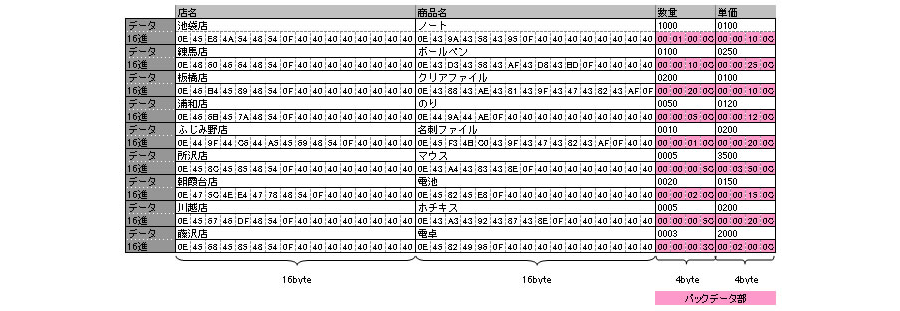
»Download the source data (Note: The sample file is in zip format. Please unzip it before use.)
Step 2 - Download and configure DataMagic script file
To convert IBM mainframe data, including packed data, to Shift_JIS, download the script file below and save it in the folder where DataMagic is installed.
C:\work\SAMPLE4\ (saved as "sample4.igen")
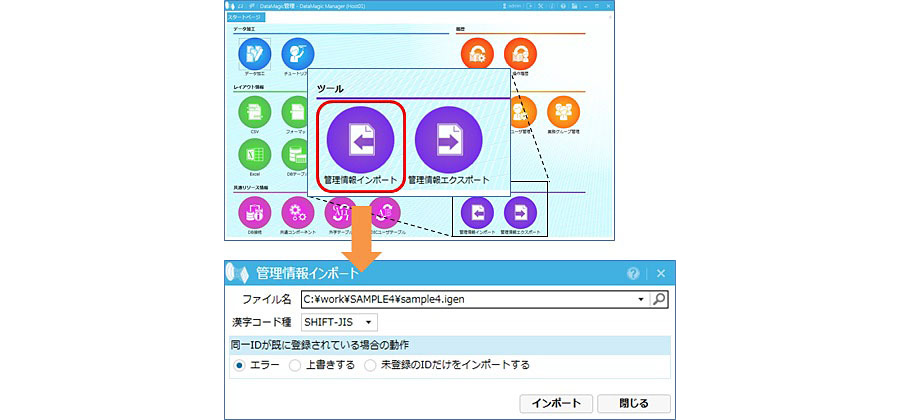
Launch DataMagic management screen and import the downloaded script file into DataMagic. To import, click the [Import Management Information] icon under [Tools] on the start screen. On the Import Management Information screen, specify the downloaded file and click the Import button. If the import is successful, the ID SAMPLE4 will be registered on the Data Processing Information List screen.
»Download the script file (Note: The sample file is in zip format. Please unzip it before use.)
Step 3 - Run DataMagic
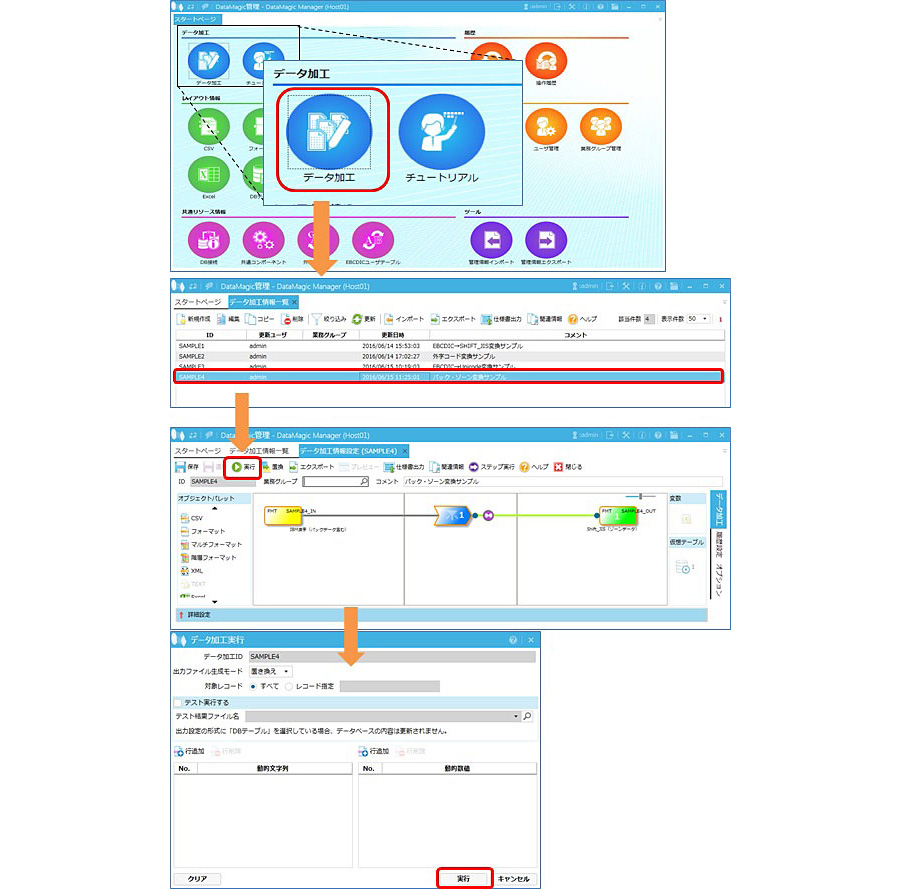
Double-click the data processing information ID SAMPLE4 registered in step 2 and check that the file names for the input and output settings are set correctly. Open the data processing information ID SAMPLE4 from the screen and click the "Execute" button at the top of the screen.
Step 4 - Check the execution results
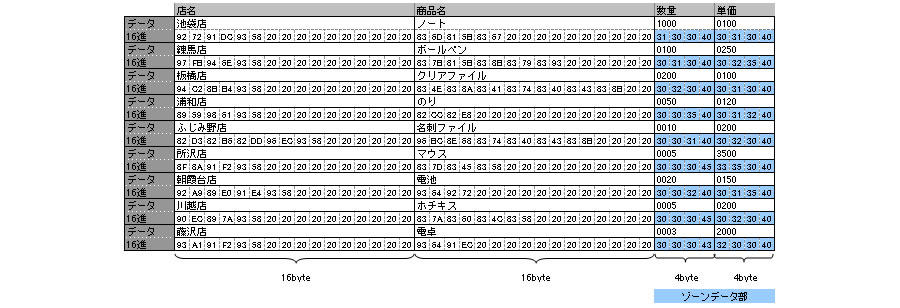
When execution is complete in step 3, a file called "out" will be created in the C:\work\SAMPLE4\ directory specified in the output settings. Check this file using an editor such as Notepad. The screen below explicitly shows the part that has been converted from packed data to zone data.
lastly
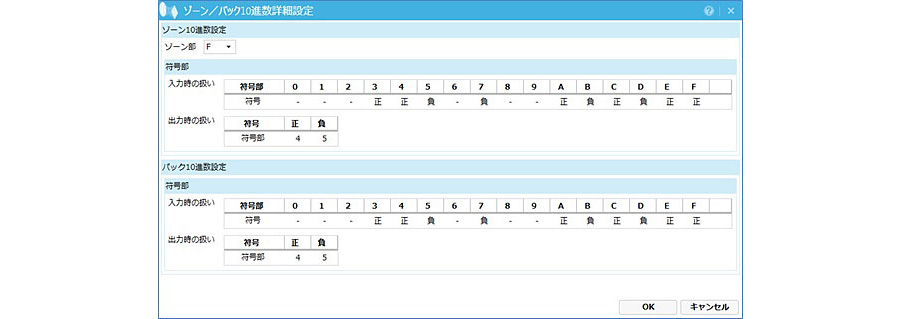
This time we used standard values to handle the signs of packed data and zone data, but with DataMagic you can set any value between 0x0 and 0xF, as shown in the screen below. We encourage you to download DataMagic trial version and try out the technical column explanations.
- The trial version is free to use for 60 days.
- After you sign up for the trial version, you will receive 90 days of free technical support.