

DataMagic Technical Column Vol.8
<Matching process>
Introduction
One of the most basic patterns in business processes is "matching" multiple files, which is the process of matching files based on a common key that exists in different files.
For example, it is used to compare two files, "product master data" and "sales data," which is the input file, based on a common key such as a "product code," and create an output file called "aggregated sales data."
The matching process is also a very development-intensive business process that often requires writing complicated programs, despite being a basic business process. DataMagic If this is the case, we provide an easy-to-use data mapping screen, so you can develop non-programming for matching not only flat files but also RDBs.
This TIPS will introduce an example of matching CSV data for order data with CSV data for product master data and creating output data. Note that in order to use this TIPS, DataMagic must be installed on your computer. For information on where to obtain DataMagic and how to install it, please refer to the separate article "Installing DataMagic."

How to operate
Step 1 - Prepare the source data (order data, master data)
First, prepare two CSV data sets: order data and master data, which will be the source data for conversion. Once the data is ready, save it in the following folder on the PC where DataMagic is installed.
C:\work\SAMPLE8\ (saved with the file name "in")
C:\work\SAMPLE8\ (saved as "match")
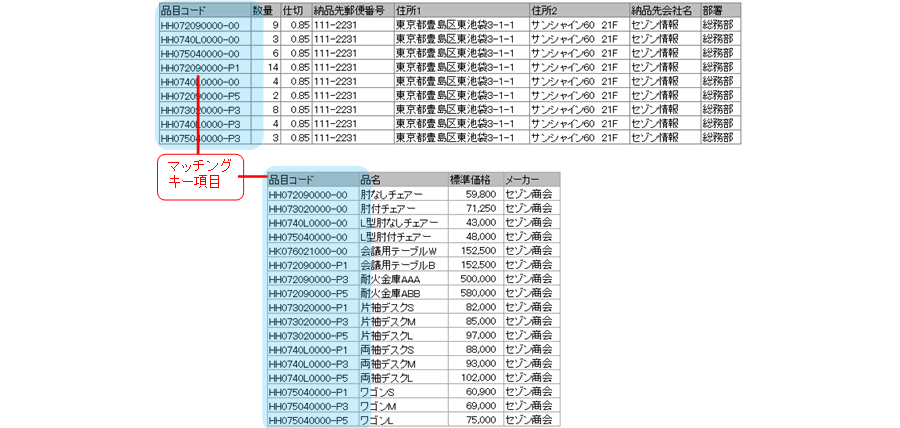
»Download the source data (Note: The sample file is in zip format. Please unzip it before use.)
Step 2 - Download and configure DataMagic script file
Download the script file below and save it in the folder where DataMagic is installed.
C:\work\SAMPLE8\ (saved as "sample8.igen")
Launch DataMagic management screen and import the downloaded script file into DataMagic. To import, click the [Import Management Information] icon under [Tools] on the start screen. On the Import Management Information screen, specify the downloaded file and click the Import button. If the import is successful, the ID SAMPLE8 will be registered on the Data Processing Information List screen.
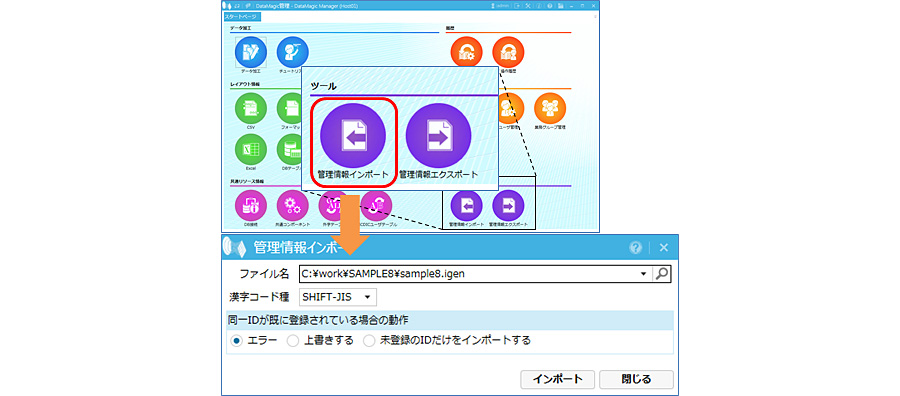
»Download the script file (Note: The sample file is in zip format. Please unzip it before use.)
Step 3 - Run DataMagic
Double-click the data processing information ID SAMPLE8 registered in step 2 and check that the file names for the input and output settings are set correctly. Open the data processing information ID SAMPLE8 from the screen and click the "Execute" button at the top of the screen.
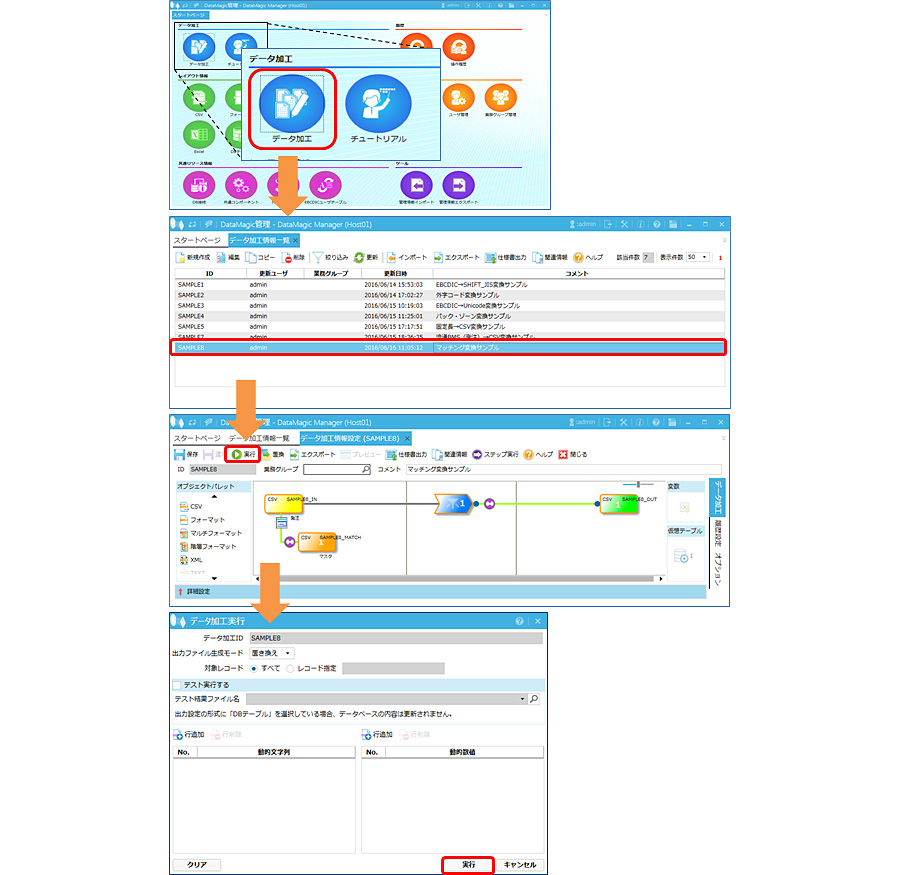
Step 4 - Check the execution results
When execution is complete in step 3, a file called "out" will be created in C:\work\SAMPLE8\, which is specified in the output settings. Check this file using an editor such as Notepad.

lastly
This time we performed matching with one master, but it is possible to specify multiple files for this matching, such as "product master", "price master", and "customer master".
Please download DataMagic trial version and try out the technical column explanations.
- The trial version is free to use for 60 days.
- After you sign up for the trial version, you will receive 90 days of free technical support.
DataMagic Column List
- DataMagic Manager Installation
- "DataMagic" is recommended for its "fast, cheap, and easy" features.
- Vol.1 Character code conversion: EBCDIC⇔Shift_JIS
- Vol.2 Character Code Conversion: External Character Codes
- Vol.3 Character Code Conversion: Unicode (UTF-8)
- Vol.4 Data Conversion: Pack⇔Zone Edition
- Vol.5 (Fixed length ⇒ CSV data conversion)
- Vol.6 (Special Edition) HUB+ DataMagic Collaboration Case Study
- Vol.7 <Distribution BMS ⇒ CSV Conversion>
- Vol.8 <Matching Processing>
- Vol.9 (Full-width⇔Half-width Conversion)
- Vol.10 (DB table data extraction)
- Vol.11 Data Correction
- Vol.12 〈String Replacement〉
- Vol.13 (Special Edition) DataMagic Implementation Case Studies
- Vol.14 (Data sorting and file division)
- Vol.15 Data Collection
- Vol.16 File Merging
- Vol.17 HULFT Definition Bulk Registration
- Vol.18 (Special Edition) HULFT-WebFiletransfer + DataMagic Integration Case Study
- Vol.19 (Introduction Case Studies) Our company's use cases
- Vol.20 Data Masking
- Vol.21 (DB Migration Edition)
- Vol.22 <Common Components: EBCDIC Code Replacement>
- Vol.22 Appendix <Common Component Import and Execution Procedures>
- Vol.23 <Common Components: Date Conversion Function Extension>
- Vol.24 〈Resolving customer requests!: Common components that can process data even if there is invalid data〉