

DataMagic技術コラム Vol.22 Appendix
〈共通コンポーネントのインポート手順および実行手順〉
Introduction
DataMagicではファイルとして保存した管理情報をインポートして実行することが可能です。
本TIPSではDataMagic技術コラムVol.22のスクリプトファイルを用いた管理情報のインポート手順および実行手順について説明します。
To use this tip, you must have DataMagic installed on your computer. For information on where to get DataMagic and how to install it, please refer to the separate article "Installing DataMagic."
How to operate
A binary editor is required to check the input and output data, so please prepare one separately.
Step 1 - Prepare the data to be converted and the script file
First, prepare the input data (the "in" file) and the data conversion script file (the "sample22.igen" file). Download sample22.zip from the link below and save it in the following folder on the PC where DataMagic is installed.
C:\work\SAMPLE22\ (Saves “in” and “sample22.igen”)
In this TIPS, we will use fixed-length data of kanji character code JEF as input data.
Binary image of input data

»Download the source data and script files
(Note: The sample file is in zip format. Please unzip it before use.)
手順2 - DataMagicのスクリプトファイルをインポートする
新しい共通コンポーネントと、その共通コンポーネントを用いたデータ加工処理をインポートします。手順1で取得した“sample22.igen”ファイルを使用します。
C:\work\SAMPLE22\sample22.igen
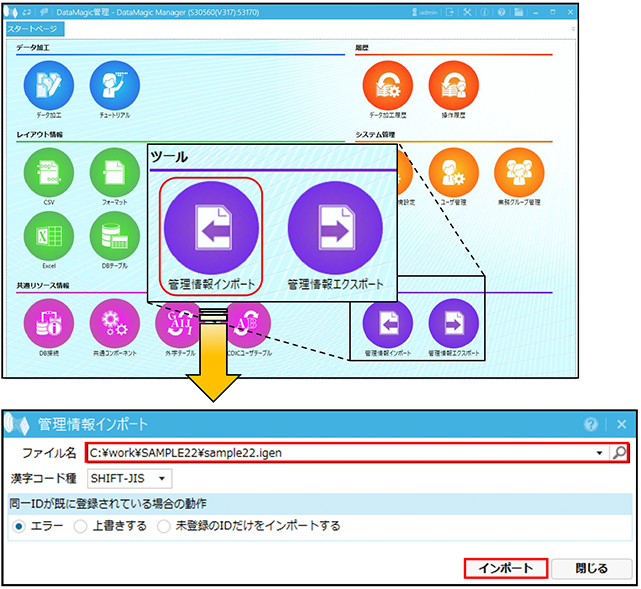
DataMagicの管理画面を起動し、ダウンロードしたスクリプトファイルをDataMagicに取り込みます。取り込みはスタートページ画面の[ツール]にある[管理情報インポート]アイコンをクリックします。管理情報インポート画面においてダウンロードしたファイルを指定し、インポートボタンをクリックします。
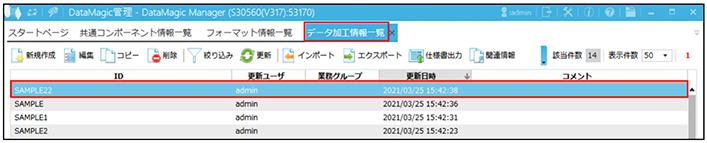
取り込みが成功すると、以下のIDが登録されます。
- データ加工情報一覧画面
SAMPLE22というIDが登録されます
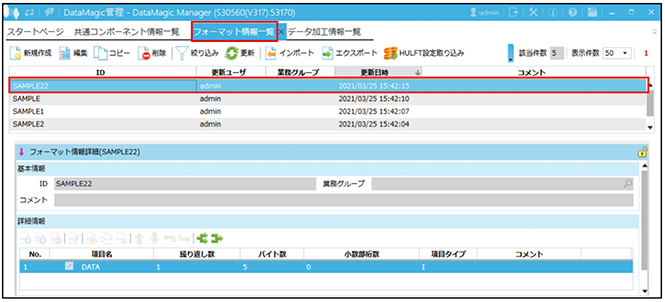
- フォーマット情報一覧画面
SAMPLE22というIDが登録されます
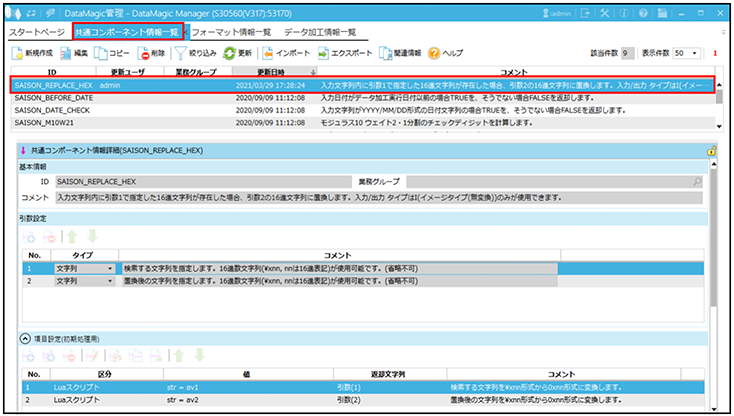
- 共通コンポーネント情報一覧画面
SAISON_REPLACE_HEXというIDが登録されます
手順3 – DataMagicを実行し、結果を確認する
手順2において登録したSAMPLE22というデータ加工情報IDをダブルクリックし、入力設定および出力設定のファイル名が正しく設定されていることを確認します。画面から、SAMPLE22のデータ加工情報IDを開き、画面上部にある「実行」ボタンから行います。
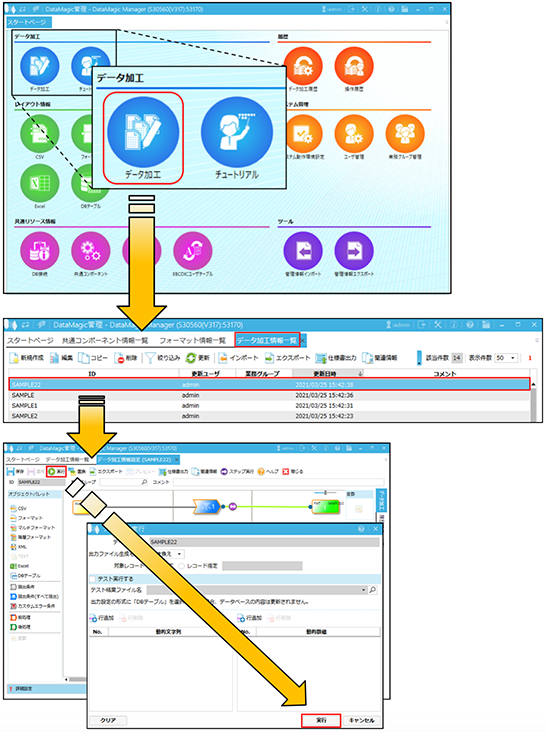
When execution is complete, a file called "out" will be created in the C:\work\SAMPLE22\ directory specified in the output settings. Check the contents using a binary editor.
Binary image of input data

Binary image of output data

lastly
今回紹介した管理情報のインポート手順では予めバックアップしておいた管理情報の復元やDataMagic間での管理情報の複製、第三者が作成した管理情報の取り込み等を簡単に行うことができますので、ぜひご利用ください。
If you do not have DataMagic
If you are interested in this product, please download DataMagic evaluation version and try it out.
- The trial version is free to use for 60 days.
- After you sign up for the trial version, you will receive 90 days of free technical support.
DataMagic Column List
- DataMagic Manager Installation
- "DataMagic" is recommended for its "fast, cheap, and easy" features.
- Vol.1 Character code conversion: EBCDIC⇔Shift_JIS
- Vol.2 Character Code Conversion: External Character Codes
- Vol.3 Character Code Conversion: Unicode (UTF-8)
- Vol.4 Data Conversion: Pack⇔Zone Edition
- Vol.5 (Fixed length ⇒ CSV data conversion)
- Vol.6 (Special Edition) HUB+ DataMagic Collaboration Case Study
- Vol.7 <Distribution BMS ⇒ CSV Conversion>
- Vol.8 <Matching Processing>
- Vol.9 (Full-width⇔Half-width Conversion)
- Vol.10 (DB table data extraction)
- Vol.11 Data Correction
- Vol.12 〈String Replacement〉
- Vol.13 (Special Edition) DataMagic Implementation Case Studies
- Vol.14 (Data sorting and file division)
- Vol.15 Data Collection
- Vol.16 File Merging
- Vol.17 HULFT Definition Bulk Registration
- Vol.18 (Special Edition) HULFT-WebFiletransfer + DataMagic Integration Case Study
- Vol.19 (Introduction Case Studies) Our company's use cases
- Vol.20 Data Masking
- Vol.21 (DB Migration Edition)
- Vol.22 <Common Components: EBCDIC Code Replacement>
- Vol.22 Appendix 〈共通コンポーネントのインポート手順および実行手順〉
- Vol.23 <Common Components: Date Conversion Function Extension>
- Vol.24 〈Resolving customer requests!: Common components that can process data even if there is invalid data〉